Editing a product
This guide explains how to edit an existing product in the inventory from the merchant app, including updating price, GST, variants, and addons.
Prerequisites
- You are logged in to the merchant app with a role that has edit access to Inventory.
Step 1: Open the Inventory module
- From the main navigation bar, click Inventory.
- In the Inventory page, click the Base Menu tab if it is not already selected.
Step 2: Find and open the product for editing
- Locate the product you want to edit in the Products list.
- Click the three dots icon next to the product and select Edit.
- The Edit Product form opens with current product details loaded.
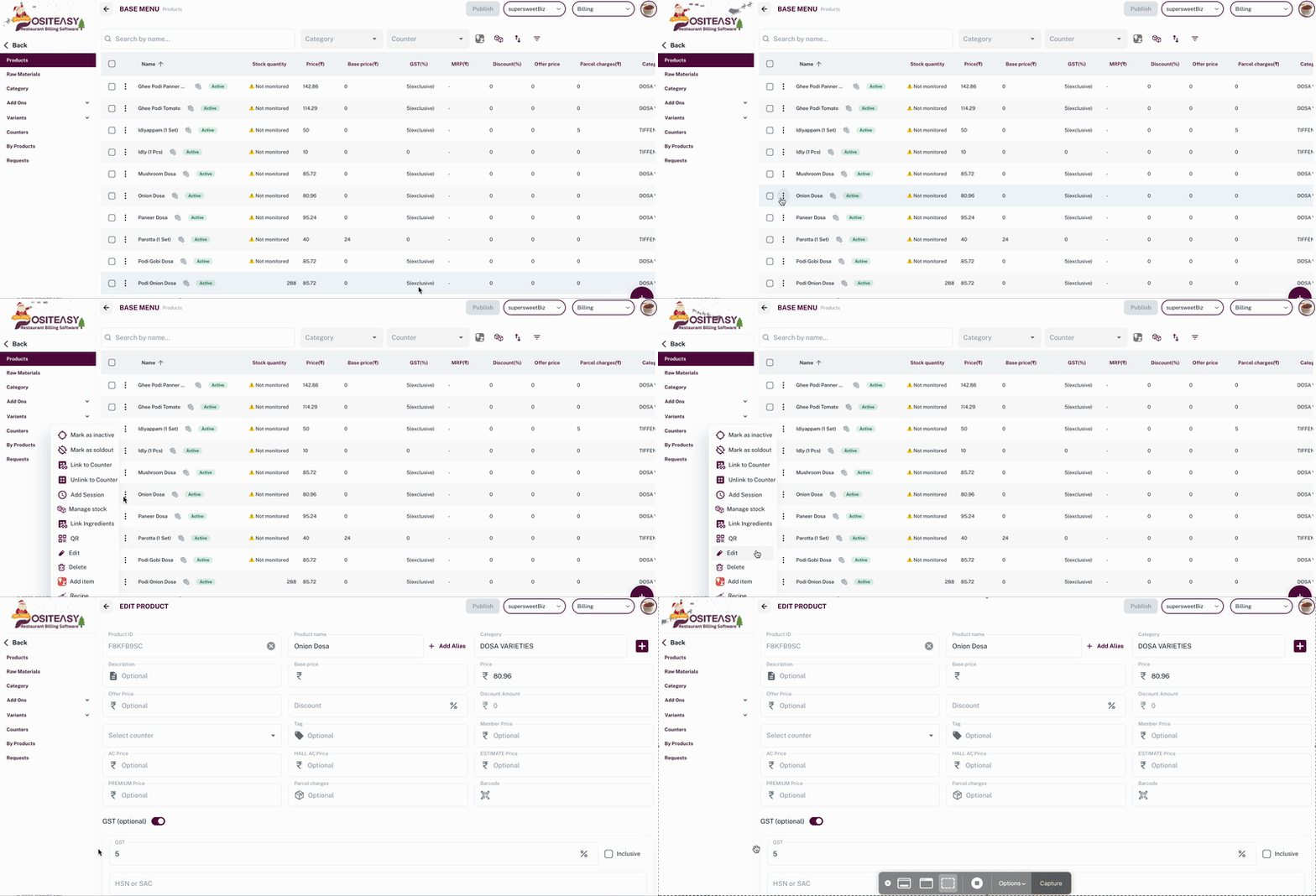
Example of the Inventory → Products list with Edit option.
The Edit Product form with basic details section.
Step 3: Update basic product details
In the Basic details section, modify as needed:
- Product name: Update the name that appears on POS and receipts.
- Description (optional): Update or add short description about the product.
- Category: Change to a different category or create a new one by clicking the add category button
 .
.
Ensure the product name remains unique and accurate for reports and search.
Step 4: Update pricing and tax
In the Pricing section:
- Update the Price as needed.
- (Optional) Modify GST settings - enable/disable or change GST percentage (inclusive or exclusive).

- (Optional) Update Base price for margin and profitability reporting.
Step 5: Update counter (Optional)
- Change the Counter to which this product belongs, if needed.
Refer Add counter to create or manage counters.
Step 6: Edit variants (if product has variants)
- Scroll to the Variants section.
- Add new variant: Click Add variant and configure new variant options.
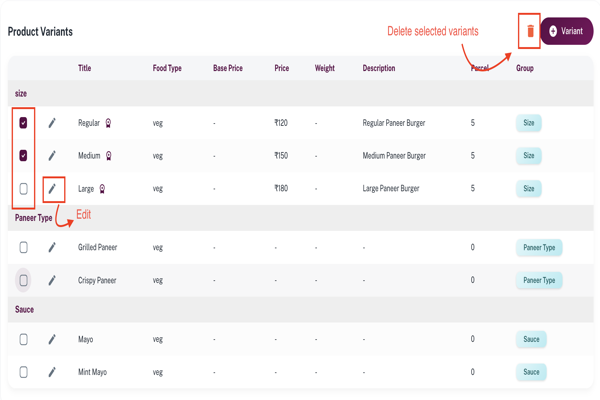
- Edit existing variants: Click on Edit icon corresponding to the variant row → Update Price, Food Type, Parcel Charges etc.
- Delete variant: Select the Variants using the checkbox corresponding to the variant row and click the trash icon.
- Ensure only one variant group is marked as Primary priced variant.
Step 7: Edit addons (if product has addons)
- Scroll to the Addons section.
- Add new addon: Click Add addons and enter necessary details. Refer add addons to product
- Edit existing addons:
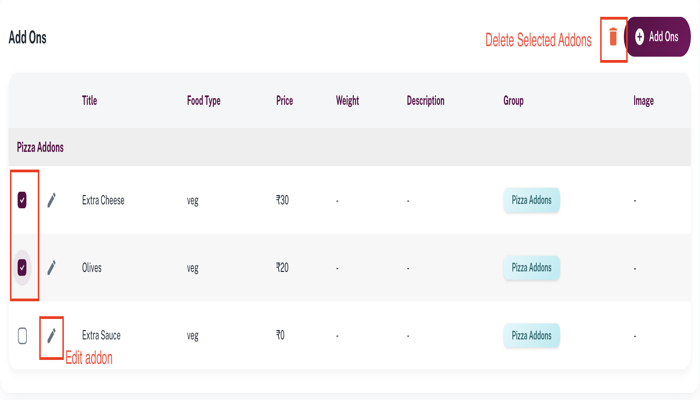
- Click on Edit icon corresponding to the addon row → Update Price, Food Type etc.(or set to ₹0).
- Delete addon: Select the addons using the checkbox corresponding to the addon row and click the trash icon.
Step 8: Save the updated product
Click Update Item button to save changes.